Wednesday, April 29, 2015

Adding The MM Events Calendar to Your Microsoft Exchange Calendar


1. Open your Microsoft Exchange (please note you can not do this through mail.groton.k12.ct.us, you can only do this in Microsoft Exchange).

2. Find the calendar icon on the left side and click it.  

3. If you do not have "The MM Events" calendar, your screen will look something like this...

4. Click on OPEN CALENDAR - it will be in the middle of your screen.


5. Click on OPEN SHARED CALENDAR.  A box will open in the middle of the screen.  Type in "The MM Events."  Click OK.


6. The MM Events calendar will then open.


7. Your calendar is still there under the Calendar tab.  If you click on the arrow pointing right, it will put the calendars side by side....


8. Here's what it looks like after you click the arrow. 


Let me know if you need help with this, it only takes a minute or so to do.  If you are support staff and everything posted to the calendar says 'busy,' put in a SchoolDude request asking to change your permission so that you may see the MM Events calendar.

Tuesday, April 21, 2015

Google Custom Search

Good afternoon,

        Would you like to be able to have kids search for things online, but are afraid of what sites might pop-up?  Try Google Custom Search.  Here’s how it works…
  1. Click on the link: https://cse.google.com/cse/.
  2. Click on CREATE A CUSTOM SEARCH ENGINE.
  3. Visit sites that you know are safe that your kids could use to search for information. Copy and paste the URL into the boxes on the Google Custom Search page.  You can add as many sites as you like.
  4. Give your Custom search a name, then save it.
  5. You can email the link to your Custom Search Engine or add a link to your webpage that goes to the browser.
  6. Students can then go to your Search Engine and search whatever they like (or whatever you assign them).  When they type in a word and click enter, the search engine will pull up information only from the sites you listed in your search engine.  
    • (For example, on mine I put PBS Kids, Brainpop Jr, Starfall, Kids Nat Geo).  Click this link to see the one I created for my class.  I have mine posted on my Students Links page.  You are welcome to use it (obviously the sites I choose might work best for K-2.  We are learning all about plants and animals and students will be able to search for information on their own.
  • To edit your search engine  
    • Click on the 9 blocks.
    • Click on MORE.
    • Click on EVEN MORE FROM GOOGLE.
    • Scrolled down to Specialized Search.  Click on Custom Search.  You will then see a list of all search engines you created.

        A classmate from my grad class shared this with the class.  We were reading different studies about new technologies, new literacies, and new literacy skills.   Some ideas from the studies…

1. Students need experience and instruction exploring digital literacy and using electronic devices.
2. Traditional comprehension skills are not enough to help readers read online texts.  (Interestingly in one article, stronger readers did worse online because they didn’t have experience using web resources, while weaker students did better because they used the computer a lot for gaming and finding information at home).   

       If you are interested in reading the studies, let me know and I can share them with you.  If you would like help with the Custom Search, let me know as well!  


Sunday, March 15, 2015

Uploading Documents to Bloomboard

Here's a step by step guide to uploading items to Bloomboard.

1. Go to supporting documents.


2. Click on ADD ANOTHER DOCUMENT


3. A box appears.  Click on UPLOAD... if you need to upload something.  If you uploaded something previously to your E-Portfolio, select LINK DOCUMENT....


4.  Go find the document to upload.  Click on it, then click OK.  

5. DO NOT CLICK CLOSE WHEN IT SAYS 100% UPLOAD.  Let the window close on its own.  If you close it, the document will not upload and you will have to start from the beginning.

6. You will then see the document uploaded.  You may highlight the document (if a PDF) or highlight lines of text (if a word document) to tag to the standards or your goals.

Thank you Monica for letting me take pictures as she uploaded a document.

Copyright Safe Websites

This email was sent out from Bernadette Kunkemoeller.  It provides as list of sites you can use to get copyright free images.  Many of these sites has been added to the district's online resources page under MISQ.


From: Kunkemoeller, Bernadette

Sites to See:
Free Photos on the Web

Looking for copyright-friendly images you and your students can use? Want hard-to-find historical images or photos from a country halfway across the world? Check out these Web sites filled with images you can use in the classroom today.
Check out more than a dozen Web sites containing free images -- including filtered and unfiltered collections, online photo albums, virtual tours, and opportunities for you and your students to share your own images with others on the Web!
Pics4Learning
Pics4Learning should be one of the first places you and your students look for photos and other images online. Educators and students have donated thousands of images for Pics4Learning, so anything you find is free for use in the classroom. Pics4Learning also encourages you and your class to donate digital pictures. (No photos of minors or faces of adults). The site even includes a collaborative project with a frog named Jacques who documents his visits across the world through photos. Don't miss it!
SURWEB
Originally a state-based project out of Utah, SURWEB now includes 10,000 images from around the world. Just like other sites, SURWEB provides photos free for use in educational settings. What sets this site apart is the more than 800 categories of images, allowing students to find images on extremely diverse topics. Plus, the media basket feature gives teachers and students a chance to quickly create a slide show on a topic by simply clicking "use in my show" button at the top and bottom of every image. Also, the virtual locker (available to those who sign up for the free resources) gives you a place to save any images you like -- great for the teacher just beginning to use images in the classroom.
Digital Saskatchewan
Don't let the name fool you! While this project was initially designed for classrooms in the Canadian province of Saskatchewan, the nearly 8,000 images are available for use by teachers and students worldwide. Like SURWEB, you can create slide shows -- called Virtual Tours. However, those Tours allow you to add both text and hyperlinks, making them easy-to-use presentations much like PowerPoints, and not simply photo slide shows. Students and teachers can create Virtual Tours, as well as Personal Photo Albums -- repositories for their favorite images. The albums are a good choice during research time, when a student might be working on computers in class, at home, and the library, so saving images to just one computer is problematic. Be sure to check out the digital postcard feature as well.
The Library of Congress's American Memory Project
With a goal of 5 million items -- from speeches to images to video to digitized text and more -- the American Memory project is by far the best source for digital content specific to American History. More than 100 thematic collections make it easy to find images specific to your class's needs. The Browse feature allows you to look for images based on U.S. regions, media type (photos? maps?), time period, or topic. Be sure to click the Teacher link on the home page to find excellent tips for using this Web site in your classroom. The teacher-based resources include a monthly chat, guiding questions to teach students to respond to the images they find, lesson plans, interactive games, and much more.
ALSO WORTH A LOOK
The following are links to lists of classroom-appropriate photo sites.
·         Kid's Image Search Tools
·         Online Image Libraries
The following links are to sites with thousands of free-to-use photos. Beware, however, that these are not education sites and they might contain images inappropriate for K-12 students. You might choose to use these as sources for your own presentations, or for use in secondary or some high school settings.
·         Flickr
·         FreeFoto
·         PublicDomain Photo
Learn about more great sites for students, parents, and educators by visiting Education World's Site Reviews Archives.

Article by Lorrie Jackson
Education World®
Copyright © 2007 Education World
Originally published 09/07/2005
Links last updated 05/23/2008

Thursday, March 5, 2015

Sharing Your Reflection for Bloomboard

After writing your reflection, you must 'share it' for your observer to see it.  You can do this two ways...

First way - at the bottom of the screen, click SHARE.


Second way....
  1. When in your reflection, find the gear at the top right corner of the reflection window and click on it.
  2. Click on WHAT's BEEN SHARED?
  3. Next to Teacher Reflection, click on SHARE under the you column.
  4. Then, your observer will be able to see your reflection.


Saturday, February 14, 2015

Logging into Chrome Browser vs. Google Drive in any Browser (Internet Explorer, Safari, Firefox) - Security and Privacy Concerns

       As Groton begins to explore more and more with what we can do with Google, there have been some concerns about privacy and security.  This post is to help explain the differences between logging in to Chrome (Google's Internet Browser) and Google Drive in ANY browser and what privacy and security possibilities there are to be aware of when using Google products.

Logging in to Google with ANY Browser (Chrome, Internet Explorer, Safari, Firefox)
   

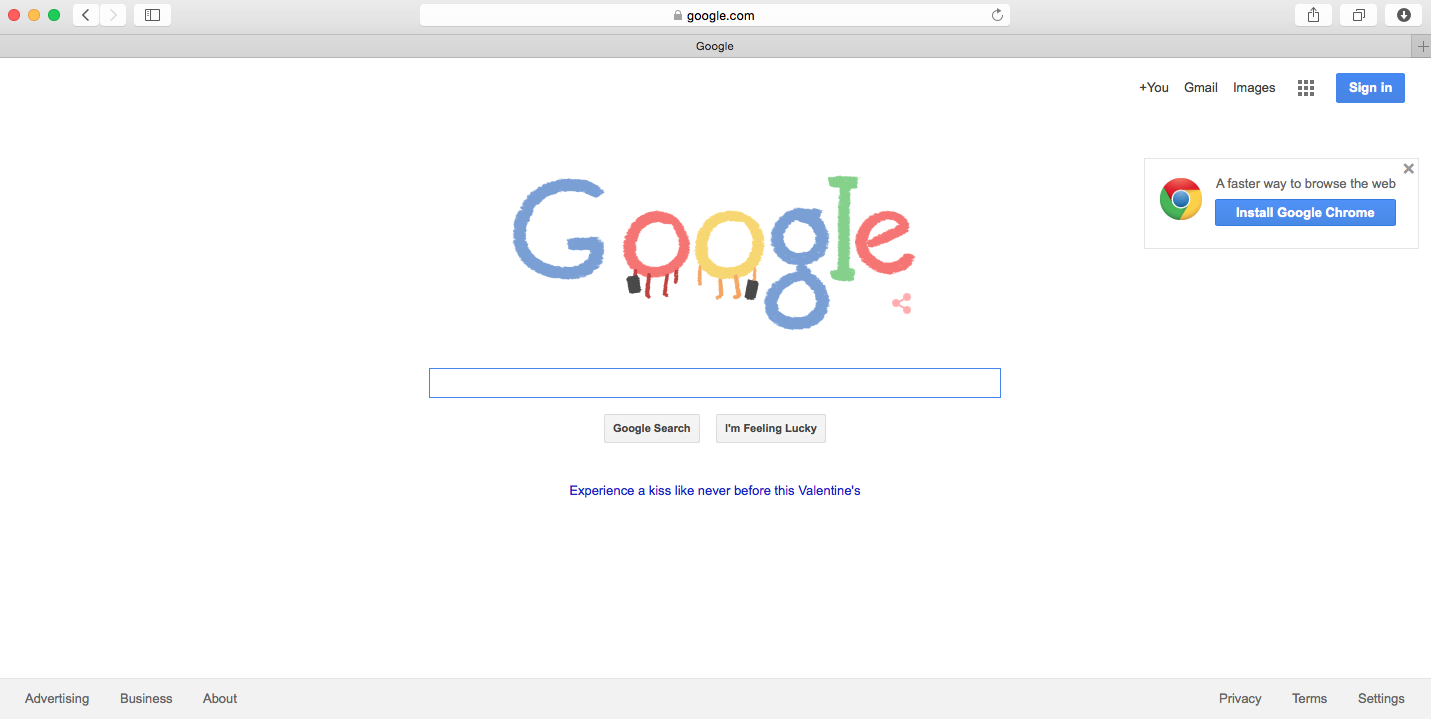
  • Pictured below is what it looks like to log in to Google by going to www.google.com (using Safari). 


  • You will notice the SIGN IN area changes once I log in to my school's account.  Here's how you can check if your computer is logged into Google AND/OR what account you are logged in to (if you're in your account or someone else's).


  • Benefits:
    • Once logged in, you will have access to all Google products (Contacts, Drive, Sites, Docs [Sheets, Slides, Docs], Blogger, etc).
  • Security / Privacy Concerns
    • Keep in mind these security / privacy concerns applies to your school's Google account AND (if you have it) your private Google account.
    • All searches on Google (while logged into your school account) is saved by Google and viewable by Central Office as the administrator of your school's Google account.
    • If you do not log out, the next person coming to your computer will have access to all of your Google Products - what's in Contacts, Drive, Sites, Docs, Blogger, etc...
    • Password information can be saved in your Google history if you ask the site to remember your password.
Logging in to Google Chrome

Logged in to Chrome Browser

      As with logging in to Google.com and having your information synced, Google Chrome does the same thing at the browser level.  To log in to Chrome, you would have to click on SIGN IN under the file menu.  You may sign in to multiple Google accounts at a time on one device.

  • Benefits
    • Chrome will keep track of all searches and sites you visit (which can be helpful when you're looking up resources for a lesson, but not so useful if you are doing personal activities liking banking or paying bills).  
    • If you bookmark a site on one device, it will be available across all devices that you log into Chrome with.
  • Security / Privacy Concerns
    • Again, keep in mind these security / privacy concerns applies to your school's Google account AND (if you have it) your private Google account.
    • Chrome will keep track of all searches and sites you visit.
    • All passwords you save will be available across all devices you log in to using Chrome.
    • If you do not log out of Google Chrome, all saved information is accessible to others who have access to your device.  They will also have access to ALL of your Google Products you have access to.
    • CAUTION - when you log in to Chrome on a new device, it will ask if you want to sync your information - this will import your bookmarks to that device - it will overwrite the bookmarks that are already on Chrome on that device.  If you don't want this, create a second account on the device.
Some Recommendations When Using Google Chrome or Drive
  • Only log in to Chrome on your own computer or device.
  • Do not select REMEMBER ME or the like when logging into websites that has personal information (bank accounts, credit cards, etc) if using Chrome.
  • Do not do personal business (banking, shopping, Facebook) when logged in to Google.com or Chrome with your school account information.  Log out, switch Google accounts, or open a different browser.
  • If you are using any device that is not your's and you log in to any Google Product (Drive, Sites, Blogger, Gmail, etc) - make sure you sign out before leaving or powering down your device.  (Double check by trying to access what you did - if it asks for a password, then you are logged out!).
  • Password protect all your devices (iPads, tablets, smart phones, laptops, computers, etc) so that after such time, the device will lock out requiring a password to log back in.  This way if its lost or stolen, no one can access your information.
  • To check if you (or someone else) is logged into Google, go to www.google.com.  If it says SIGN IN, no one is logged in to the device.  If someone is logged into that device, their email address will appear in the top right corner.  
Helpful Resources Found Online...