- How to log into a School Chromebook
- Creating seperate accounts in Google Chrome (so data from a personal account isn't synced with a student account
- Using Clever to log-in to multiple sites (your district must have access to this)
- Google Classroom Tutorial for Parents
- And more....
Showing posts with label Chrome. Show all posts
Showing posts with label Chrome. Show all posts
Friday, March 27, 2020
Parent Tech Tutorials
Visit my Parent Tech Tutorials playlist on YouTube for videos you can share with parents. You can find posts on these topics (and more)....

Saturday, January 18, 2020
Going Paperless (for Teachers) with Kami
Here are the steps I recently went over with teachers during our workshop in getting ready to use Kami. These steps are to help you put in place a system that replaces using paper and pencil for many teacher tasks. This is how I manage using Kami with Google Drive; however, there are a couple different ways that you can use Kami and organize your files.
Step 1 - Log in to the Chrome Browser using your school account information.
Step 3 - Go to https://www.kamiapp.com/ and create an account.
Step 1 - Log in to the Chrome Browser using your school account information.
- If you have assessments that you would like to use with Kami, make sure they are uploaded to your Google Drive or if a folder has been shared with you, make sure you add it to your 'My Drive."
Step 2 - Add a folder to your bookmarks bar.
- Learn how to show your bookmarks bar, add folders to it, and add websites to those folders.
- Don't forget to bookmark Kami!
- This is not neccessary, but will be a big help organizationally if you are toggling between a desktop and an iPad or other device.
- Click here to see how to add the Booksmark bar to your screen across different platforms.
Step 3 - Go to https://www.kamiapp.com/ and create an account.
- Verify in the settings that you are automatically synced with Google Drive and that you 'install' the Chrome extension to your Chrome browser.
Step 4 - Open a file through Kami's website and bookmarking it.
- Here you will learn an organizational trick when it comes to using Kami for Assessment or other teacher purposes.
Step 5 - Opening a file and using Kami to annotate on an assessment or other document.
- Here you will learn what to do when you are assessing a student or using Kami with some other document.
Step 6 - Using Kami with an assessment that is given multiple times a year. (Using the 'Make a Copy' Feature)
- Here you will learn a trick for those assessments that you give to all your students multiple times a year.
Step 7 - Organizing your files in Google Drive.
- Here you will learn how to organize your files to make it easier to manage all the documents you will be creating.
Tips and Tricks - How to Create Your Own Checklists / Notetaking Tools to use with Kami.
How to Log into Chrome Browser
Logging into Chrome Browser is very helpful when working with sites that support Google Login. If you are logged in to your Chrome Browser, when you visit a site that supports Google Login you will click the Google Sign-in button the first time and then be automatically signed in on your return visit. Signing into your browser also helps sync your bookmarks across devices, which is really helpful when you work across two or more devices. Here are the steps to follow....
For a desktop / laptop...
For a desktop / laptop...
- Open Chrome Browser.
- Click on the 'People' button (to the left of the three dots).
- Click 'Sign in to Chrome.'
- Enter your username and password.
- Then, sign in. Once you have done this, it will save your information for you. You will not have to sign in each time you open the browser. (If your organization has strict password requirements, you may need to periodically enter your password to verify that you are who you say you are).
- If you are using multiple devices and want to synce your bookmarks - make sure that you select 'turn sync on.'
For an iPad...
- Open Chrome Browser.
- Click on the three dots in the top right corner.
- Click 'Settings.'
- Enter your username and password.
- Then, sign in. Once you have done this, it will save your information for you. You will not have to sign in each time you open the browser. (If your organization has strict password requirements, you may need to periodically enter your password to verify that you are who you say you are).
- If you are using multiple devices and want to synce your bookmarks - make sure that you select 'turn sync on.'
It's a good idea to be aware of what it means to sync your information. See this post about the difference between signing in to Google, signing in to the Chrome Browser, and what it means to sync data across devices.
Wednesday, March 1, 2017
No Sound on Student Laptops
This happened to me recently and if a K student can cause it, anybody can 😀! If you have the tone for when the computer boots up, but nothing else works here's what you can do. Under the volume control, you have the option of turning the volume off for something specific (say Chrome or Internet Explorer), but leave the sound on for other things (like system sounds).
Here's how to fix it...
Here's how to fix it...
- Right click on the volume control icon in the bottom corner.
- Click on Volume mixer.
- Check that ALL volume controls are turned up.
- In my case, someone turned off the volume for Chrome, but system sounds was left on.
Saturday, January 16, 2016
Adding Blogger to Chrome Dashboard
**(8/9/2016 update)** - Please note - the Blogger App has been dropped from Chrome Web Store and Apple's store. You can only get it on Android devices. You can still use Blogger, you just have to log in through the browser on your iPhone or iPad. If you previously had the app, you still have access to it, it's just not being updated. I'm still using it. The Blogger website is still being maintained.**
If you'd like to add Blogger to your Chrome Apps, but are having trouble finding it in the Chrome Web Store click this link! Make sure you are logged into Chrome with the account that you blog with. Once at the website, click ADD TO CHROME. It will add the Blogger app to your Chrome Apps.
If you'd like to add Blogger to your Chrome Apps, but are having trouble finding it in the Chrome Web Store click this link! Make sure you are logged into Chrome with the account that you blog with. Once at the website, click ADD TO CHROME. It will add the Blogger app to your Chrome Apps.
Friday, August 21, 2015
Doing More with Google Docs (Sheets and Docs)
If you'd like to do more with Google Docs and Google Sheets, check out the free add-ons! These add-ons let you add features to your documents, new fonts, clip-art, organize information, insert graphs, live chat with collaborators, and more! I especially like the app for clipart and the app for different fonts. Here's some add-ons I found useful in Google Docs.
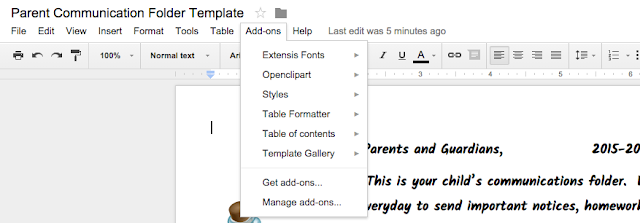
Here's a snapshot of some of the add-ons in Google Sheets.


Here's a snapshot of some of the add-ons in Google Sheets.

To find Add-ons, click on the ADD-ONs menu at the top of the document screen. Then click GET ADD-ONs. A menu of add-ons will pop-up like pictured above. Browse through the add-ons. If you like one, click on + FREE. A window will pop-up letting you know what the add-on has access to. Click ACCEPT. The app will then be added to your Add-Ons file. When you want to use it, just click on the name and the app will open on the right side of the screen.
Saturday, February 14, 2015
Logging into Chrome Browser vs. Google Drive in any Browser (Internet Explorer, Safari, Firefox) - Security and Privacy Concerns
As Groton begins to explore more and more with what we can do with Google, there have been some concerns about privacy and security. This post is to help explain the differences between logging in to Chrome (Google's Internet Browser) and Google Drive in ANY browser and what privacy and security possibilities there are to be aware of when using Google products.
Logging in to Google with ANY Browser (Chrome, Internet Explorer, Safari, Firefox)
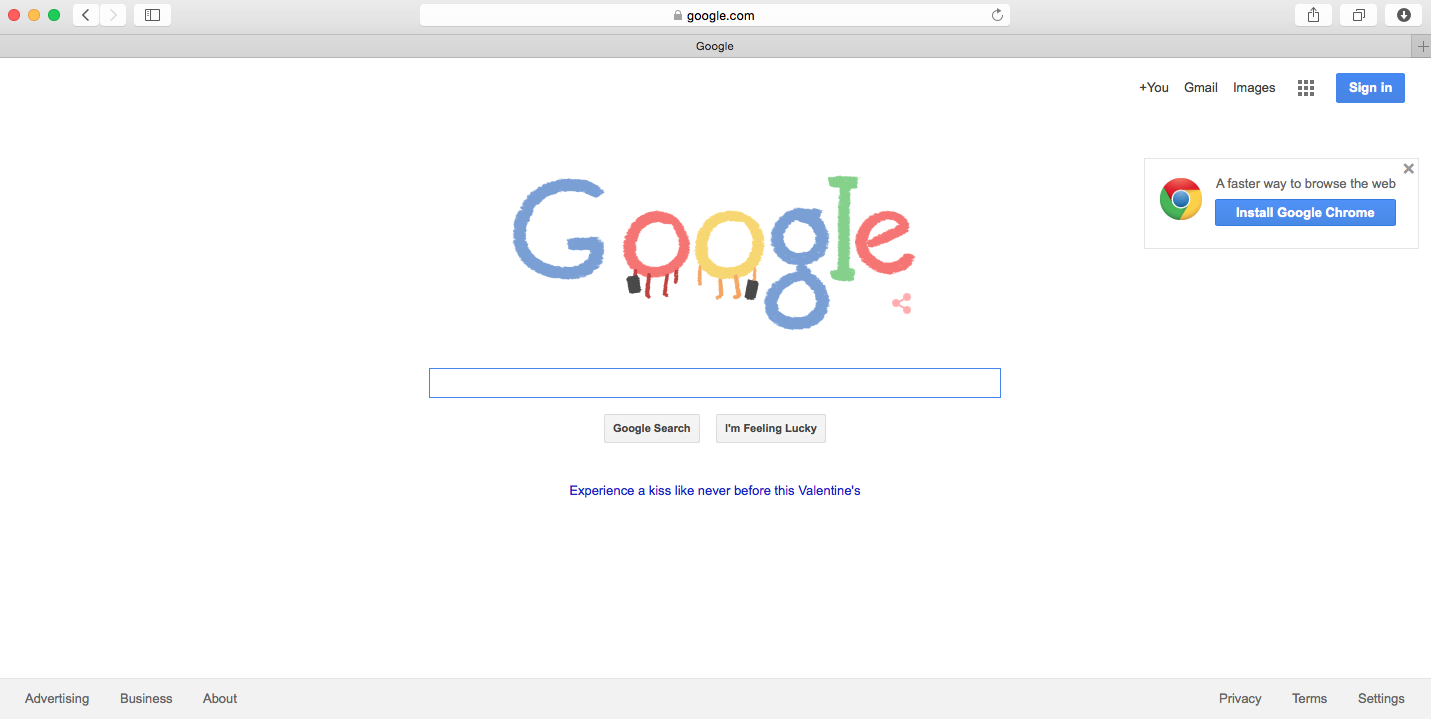


Logging in to Google with ANY Browser (Chrome, Internet Explorer, Safari, Firefox)
- Pictured below is what it looks like to log in to Google by going to www.google.com (using Safari).
- You will notice the SIGN IN area changes once I log in to my school's account. Here's how you can check if your computer is logged into Google AND/OR what account you are logged in to (if you're in your account or someone else's).
- Benefits:
- Once logged in, you will have access to all Google products (Contacts, Drive, Sites, Docs [Sheets, Slides, Docs], Blogger, etc).
- Security / Privacy Concerns
- Keep in mind these security / privacy concerns applies to your school's Google account AND (if you have it) your private Google account.
- All searches on Google (while logged into your school account) is saved by Google and viewable by Central Office as the administrator of your school's Google account.
- If you do not log out, the next person coming to your computer will have access to all of your Google Products - what's in Contacts, Drive, Sites, Docs, Blogger, etc...
- Password information can be saved in your Google history if you ask the site to remember your password.
Logging in to Google Chrome
Logged in to Chrome Browser
As with logging in to Google.com and having your information synced, Google Chrome does the same thing at the browser level. To log in to Chrome, you would have to click on SIGN IN under the file menu. You may sign in to multiple Google accounts at a time on one device.
- Benefits
- Chrome will keep track of all searches and sites you visit (which can be helpful when you're looking up resources for a lesson, but not so useful if you are doing personal activities liking banking or paying bills).
- If you bookmark a site on one device, it will be available across all devices that you log into Chrome with.
- Security / Privacy Concerns
- Again, keep in mind these security / privacy concerns applies to your school's Google account AND (if you have it) your private Google account.
- Chrome will keep track of all searches and sites you visit.
- All passwords you save will be available across all devices you log in to using Chrome.
- If you do not log out of Google Chrome, all saved information is accessible to others who have access to your device. They will also have access to ALL of your Google Products you have access to.
- CAUTION - when you log in to Chrome on a new device, it will ask if you want to sync your information - this will import your bookmarks to that device - it will overwrite the bookmarks that are already on Chrome on that device. If you don't want this, create a second account on the device.
Some Recommendations When Using Google Chrome or Drive
- Only log in to Chrome on your own computer or device.
- Do not select REMEMBER ME or the like when logging into websites that has personal information (bank accounts, credit cards, etc) if using Chrome.
- Do not do personal business (banking, shopping, Facebook) when logged in to Google.com or Chrome with your school account information. Log out, switch Google accounts, or open a different browser.
- If you are using any device that is not your's and you log in to any Google Product (Drive, Sites, Blogger, Gmail, etc) - make sure you sign out before leaving or powering down your device. (Double check by trying to access what you did - if it asks for a password, then you are logged out!).
- Password protect all your devices (iPads, tablets, smart phones, laptops, computers, etc) so that after such time, the device will lock out requiring a password to log back in. This way if its lost or stolen, no one can access your information.
- To check if you (or someone else) is logged into Google, go to www.google.com. If it says SIGN IN, no one is logged in to the device. If someone is logged into that device, their email address will appear in the top right corner.
Helpful Resources Found Online...
Subscribe to:
Posts (Atom)