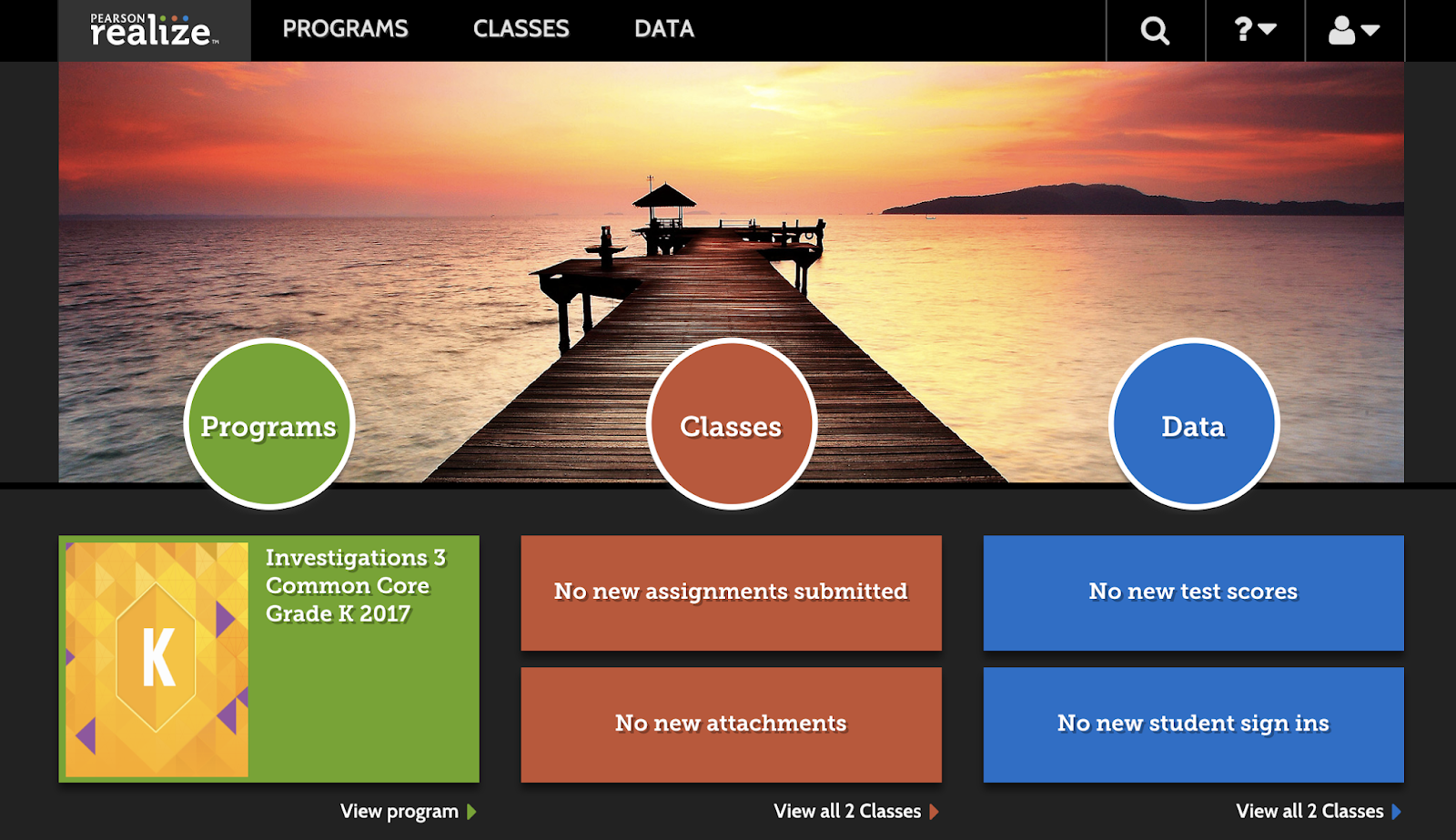
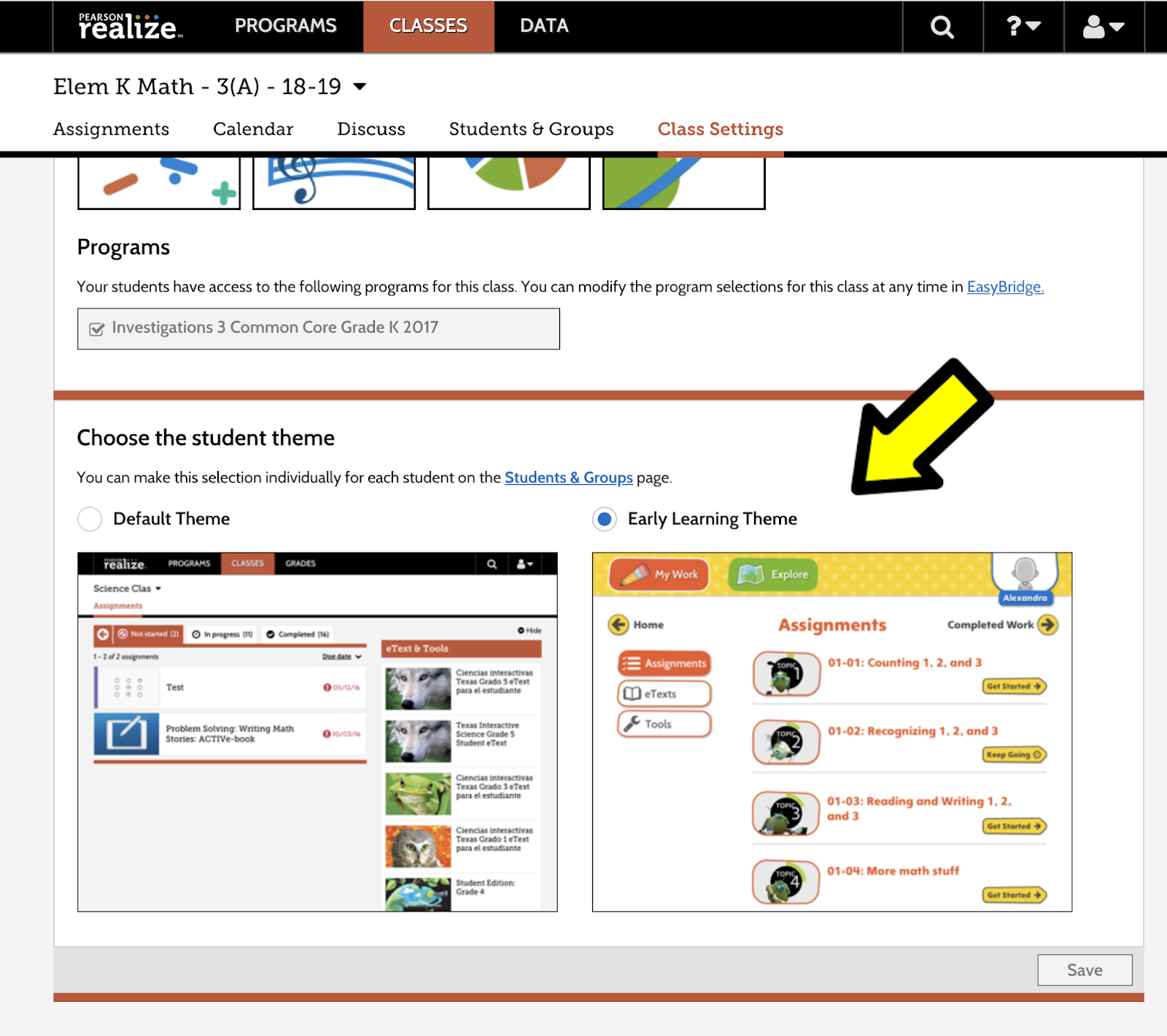
What can kids do here? What do they have access to?
Students will have access to all instructional resources (as in the workbook pages for lessons and any demonstration activities) for all Investigations units within their grade level.
What a student sees when they go to a lesson...
Example of what a student has access to...
Students will have access to digital Math Tools.
Students can access any assignments (lessons, worksheets, or games) under the Classes link that you assign through Pearson Realize and submit them.
Students can see grades / feedback on assessments you give and grade through Pearson Realize.
5. Wait a minute or two, or click refresh. "Completed" and "View" will show up in the menu. Click VIEW to see a PDF of all of the report cards in your class.
1. At the bottom of each section, select FINAL GRADE STATUS.
2. In the box that opens, click the box at the top next to T2 FINAL GRADES ARE COMPLETE. Then click SAVE. Repeat process with each section (including the non-subject one).
I've launched a new classroom website! Please update your bookmarks if you had any of my old pages bookmarked. Google Sites has launched a new platform for their web building tools. The old Google sites will no longer be supported sometime in 2018-2019. With my old building closing and our district changing website providers this summer, I decided to go ahead and make the switch this summer. Click here to visit the my new Mr. Mott's Kindergarten website! I will not be deleting the old website, but also will not be updating its content either. The new website has a more modern look and more user friendly. It does allow me to add content more easily then the old Google Sites. Also, the website will be able to use on any device compared to the old Google Sites.
I've launched Mr. Mott's K Store on Teachers Pay Teachers! Click here to visit my new store!To start out, I've posted lesson plans and materials to use in the classroom. After the school year gets going, you will see some technology based activities on my TpT page like using QR Codes with LA and Math activities, flipcharts, and data management.