Thursday, September 10, 2015
Groton Assessment Page Navigation Help
Click here for help navigating the Groton Assessment Page under the gpscurricula page. (Click here to go to the gpscurricula website.)

Friday, August 28, 2015
Printing Flipcharts (if they print out small)
Sometimes when printing flipchart,s they may come out too small. To fix this this is what you do. When you go to print, find Layout (2nd box down in Primary, Just below Color Mode in Studio Mode). Make sure you have one row and one column only if you want it to take up the whole page. (If you want to print more slides to a page, then add rows or columns). Then select print!
Primary Mode:

Studio Mode:

Turning On / Off Touch
To turn on/off the touch sensor....
Using your remote...
Using your remote...
- Click Menu on the remote.
- Arrow down to Extended, select (using return/click mouse button).
- Select Easy Interactive Function.
- Go down and select Touch Unit Setup.
- Select Power.
- Then turn it on or off based on your needs.
- Continue to hit ESC (right click mouse icon) until menu disappears.
Tuesday, August 25, 2015
Turning on/off Hovering on Epson Projector
With the remote...
- Click Menu on the remote.
- Arrow down to Extended - select by hitting enter/mouse click button.
- Select Easy Interactive Feature.
- Arrow down to Hovering - select your preference.
- Hit Esc until menu disappears.
Monday, August 24, 2015
Groton's Curriculum Page
Click here to go to the Groton's Curriculum Page. On the Curriculum page you can...
- Access Curriculum Folders with Curriculum
- Access Shared Resources for each unit of Study
- Information from Curriculum Office (now Teaching and Learning Office)
- Assessments and Assessment Calendars
- Online Links / Resources
- Professional Development Resources
Friday, August 21, 2015
Doing More with Google Docs (Sheets and Docs)
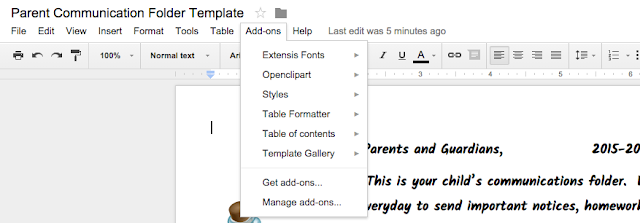
If you'd like to do more with Google Docs and Google Sheets, check out the free add-ons! These add-ons let you add features to your documents, new fonts, clip-art, organize information, insert graphs, live chat with collaborators, and more! I especially like the app for clipart and the app for different fonts. Here's some add-ons I found useful in Google Docs.
Here's a snapshot of some of the add-ons in Google Sheets.


Here's a snapshot of some of the add-ons in Google Sheets.

To find Add-ons, click on the ADD-ONs menu at the top of the document screen. Then click GET ADD-ONs. A menu of add-ons will pop-up like pictured above. Browse through the add-ons. If you like one, click on + FREE. A window will pop-up letting you know what the add-on has access to. Click ACCEPT. The app will then be added to your Add-Ons file. When you want to use it, just click on the name and the app will open on the right side of the screen.
Subscribe to:
Posts (Atom)